Find History
Use Ranch.Bot history to answer a real question: when a group moved, what happened to one animal, or which records exist for a pasture. You can ask in Chats or browse Records without the assistant.
What you'll accomplish
Find the saved record behind an answer, open it, and check its date and details. You finish with the record in front of you, not just a remembered reply. If nothing was recorded, you learn that too.
Before you start
- An account with current access to the farm.
- Owner or Editor access and assistant access to ask a question. Readers can browse records and existing conversations but cannot send assistant questions or confirm writes.
- The identifier, group name, or approximate date you already use for the animal or group.
Ask a question in Chats
- Open Chats.
- Choose New chat if you are starting a separate question.
- Ask in your own words. For example: "When did the ewe lambs move to West pasture?"
- Read the answer, then open the record reference shown with it.
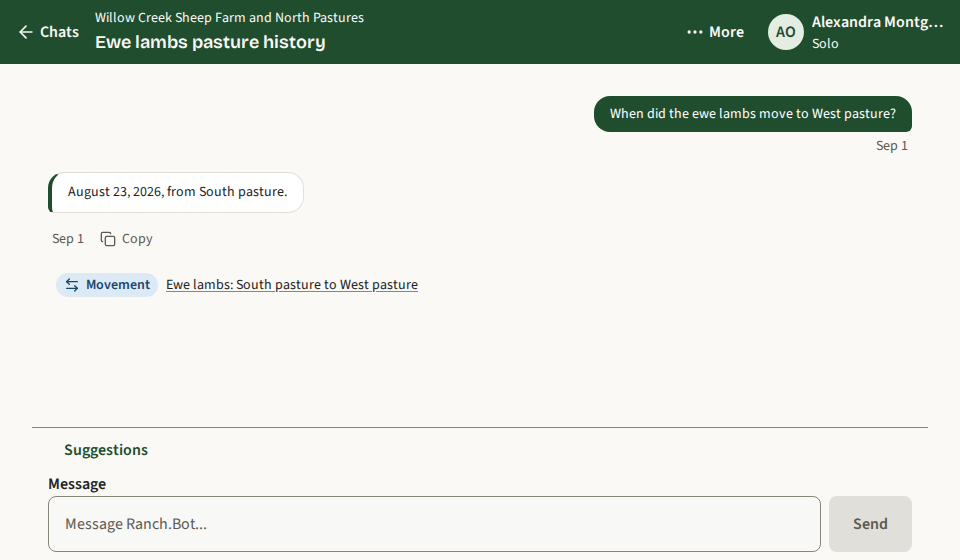
The answer names the event date and the source it used. The record reference opens the saved record. If the answer says the information is not recorded, treat that as missing history, not as proof that the event never happened.
Browse without asking
You do not need the assistant to find a saved record:
- Animals searches the identifiers loaded in the list. Open an animal to review its primary and secondary identifiers, status, group membership, linked records and weights, and recent changes.
- Groups shows current members, head counts, and the group's recorded details. Open a group to review its members and recent changes to the group.
- Records filters by Health, Feed, Movement, Genetic, Other, or All. Open a record to review its name, description, event date, structured items, timestamps, and recent changes.
- Change History shows recent changes, including any Undo that is offered.
Animal detail pages show records linked to that animal. Group detail pages show members and recent changes to the group. To find events recorded for a group, browse Records or ask in Chats.
How you know it worked
- The conversation answer includes a record reference that opens the saved record.
- The record detail shows the expected name, date, type, and description.
- The same record appears in the matching Records filter. If it is linked to an animal, it also appears on that animal's detail page.
- If the answer is "not recorded," search the identifier and nearby dates before concluding the work was missed.
A reply without an opened record is an answer, not yet a verified history. Check the record itself.
If something goes wrong
Clarify an ambiguous identifier
If an identifier matches more than one animal, Ranch.Bot asks which one you mean. Do not accept a substitution. Add the management tag, EID, brand, tattoo, or other detail that distinguishes them. Searches include historical inventory statuses, so an animal that left the farm can still appear.
The assistant cannot answer
Check that the farm is selected and that you have Editor or Owner access. A connection failure is not an empty history: retry, or browse Records directly. If the assistant says it is unavailable, use the browse paths above rather than assuming the record is gone.
The answer says nothing was recorded
Absent history does not prove an event never occurred. Records may have been kept elsewhere, entered under another animal, or never saved. Search the group, the identifier, and the surrounding dates. If you find a gap you need filled, add the missing event through the normal review flow instead of editing an unrelated record.
I cannot open the record
Check your farm access and role. Readers can view farm records. If the record was saved through a connected CLI or MCP client, it may not have an in-app Change History entry, but it remains farm data. If access still looks wrong, ask the farm Owner to check your membership.